
Have you ever configured or set up a FortiGate and found yourself scratching your head because something isn’t working? You’re not alone 😊
Most of the issues I’ve experienced whether in production or in the lab aren’t caused by bugs, hardware problems, or image versions. They usually come from misunderstanding how NAT, routing, and firewall policies work together. Let’s build (and break) a simple lab to understand this better and summarize it in an easy way.

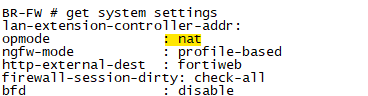
Fortigate Operates in two main modes:
i. NAT/Route Mode (default)
- Acts as a Layer 3 device
- Interfaces have IP addresses
- Performs routing + firewall + NAT
ii. Transparent Mode
- Acts like a Layer 2 bridge
- No routing decisions
- MAC addresses are preserved
When to use each FortiGate mode:
-
Transparent mode: Use this when you cannot change the existing network design. The firewall acts like a “bump in the wire” without modifying IP addresses.
-
NAT/Route mode: Use this when the firewall needs to act as a gateway, such as for internet edge protection, network segmentation (LAN/DMZ/WAN), site-to-site VPNs, or NAT.
Can we run two modes on the same device? Yes, you can, but you need to use VDOMs to separate them.
In the topology:
-
The default gateway for the legacy network is configured on VDOM1 (NAT mode).
-
VDOM2 (transparent mode) is primarily used for inspection and security.
-
VDOM1 (NAT mode) acts as a Layer 3 router and firewall.
-
Use internal VDOM links for traffic between NAT and Transparent VDOMs

When you’re planning to run mixed VDOMs with NAT and Transparent mode, the hardware selection and configuration are critical. You want enough CPU, memory, and interface capacity to handle multiple modes, policies, and high throughput.
CPU & Session Capacity
-
NAT mode is CPU-intensive, especially with:
-
Source NAT/SNAT for many clients
-
Deep Packet Inspection (IPS, AV, Application Control)
-
-
Transparent mode is lighter, but adding multiple VDOMs increases CPU usage.
-
Recommendation:
-
Use FortiGate models that support hardware acceleration / NP6 network processors for NAT-heavy traffic.
-
For mixed VDOMs with high throughput, consider enterprise models like FG-100F, FG-200F or above.
-
Memory (RAM)
-
Each VDOM maintains:
-
Routing tables
-
Policy tables
-
Session tables
-
-
Multiple VDOMs → more RAM required.
-
Rule of thumb:
-
Small deployment: 2–4 VDOMs → 8–16 GB RAM minimum
-
Enterprise: 8+ VDOMs → 32+ GB RAM recommended
-
Recommended Hardware for Mixed Mode Deployment
| Deployment Size | Recommended Model | Notes |
|---|---|---|
| Small office / lab | FG-60F / FG-80F | 2–3 VDOMs, moderate traffic |
| Mid-size office | FG-100F / FG-200F | Supports multiple NAT & Transparent VDOMs, hardware acceleration |
| Enterprise | FG-300F+ / FG-6000 series | High throughput, multiple VDOMs, full security profiles |
Always check Fortinet datasheets for maximum VDOMs, session capacity, and interface throughput.

Every packet follows this path:
- Ingress (packet enters interface)
- Routing decision
- Firewall policy match
- NAT applied (if configured)
- Egress (packet leaves interface)
👉 Note this:
Route → Policy → NAT

What happens to MAC addresses?
- Incoming frame is terminated
- FortiGate builds a new frame
Result:
- Source MAC = FortiGate outgoing interface
- Destination MAC = next-hop device
👉 Key takeaway:
MAC addresses change at every hop in routed mode.

Understanding NAT in FortiGate
- Used for outbound traffic: Private → Public (10.0.10.100 → 200.200.100.100)
- Destination NAT (DNAT / VIP): Public → Internal server (200.200.100.100→10.0.10.100)
SNAT Behavior:
- Policy is matched using original IP
-
NAT happens after
DNAT (VIP) behavior:
- VIP is applied before policy
-
Policy sees the translated IP
To be continued………….